I have a confession to make. For years, every time I had to write or edit a SQL INSERT statement, I did the same little dance: put my cursor on a value, count the commas, scroll back up to the column list, count again, and hope I landed on the right spot. Then I'd change the value... and still not be 100% sure it was the right column.
Vous préférez lire en français? Lisez la version française ici.
With three or four columns, fine. But give me a table with fifteen columns and a few rows of data, and I'm suddenly back in school, counting on my fingers.
So I built Rainbow SQL, my very first VS Code extension. 🎉
The idea: just give me matching colors
The idea was simple. If every column had its own color, and every value used the same color as its column, I wouldn't need to count anything anymore. I could just see it.
Here's what that looks like:
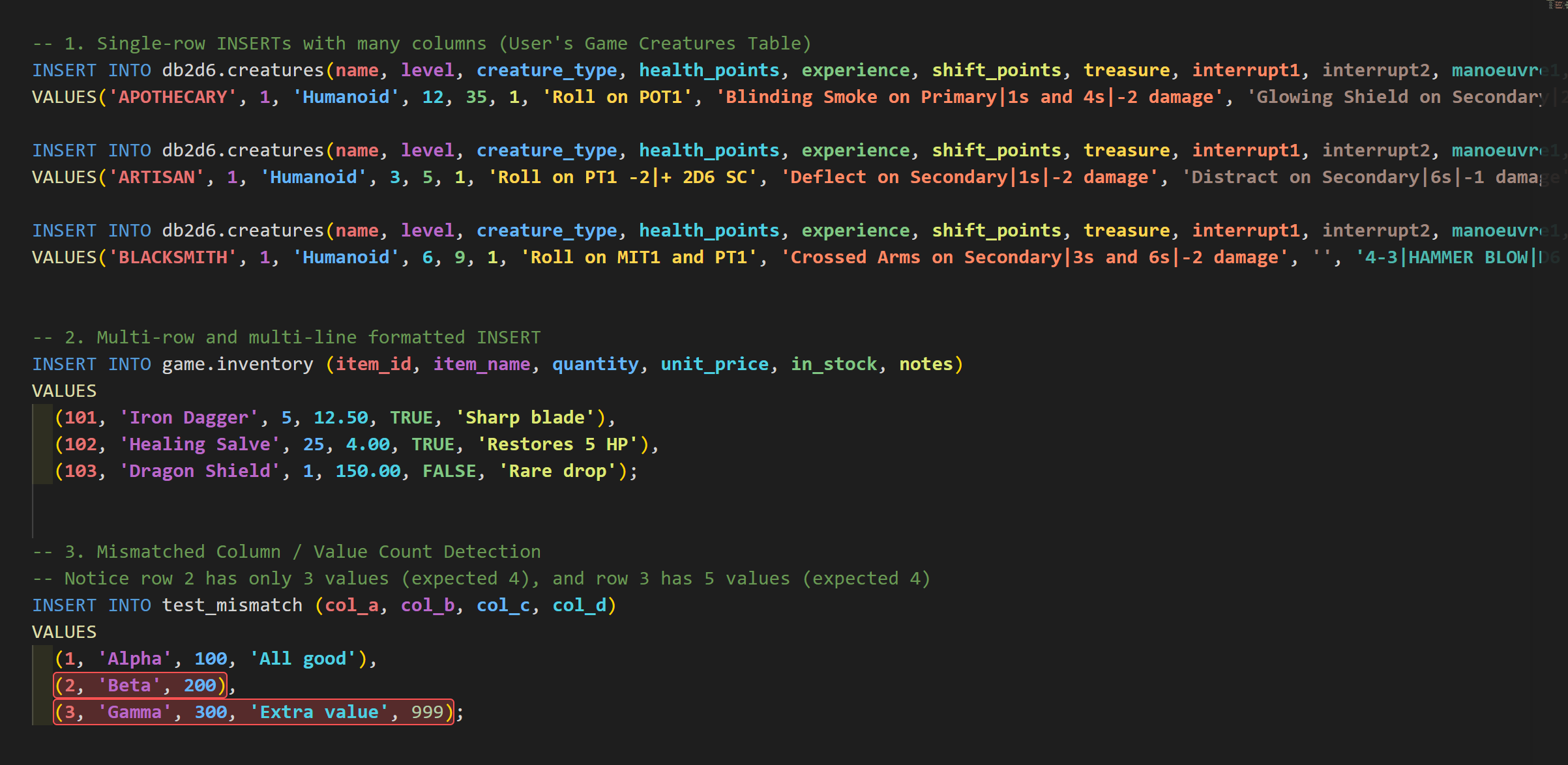
health_points is blue, so the blue value is the health points. That's it. No more counting commas.
It works whether your statement is on one long line, or nicely formatted across multiple lines with many rows:
INSERT INTO items (id, code, price)
VALUES
  (101, 'ITEM_A', 19.99),
  (102, 'ITEM_B', 24.50);
Every id gets the same color, every code gets the same color, and so on, all the way down.
"But which column is this, exactly?"
Colors are great, but sometimes you want to be sure. So I added a little hover popup. Put your mouse over any value and Rainbow SQL tells you the column number, the column name, the table, and which row you're in.
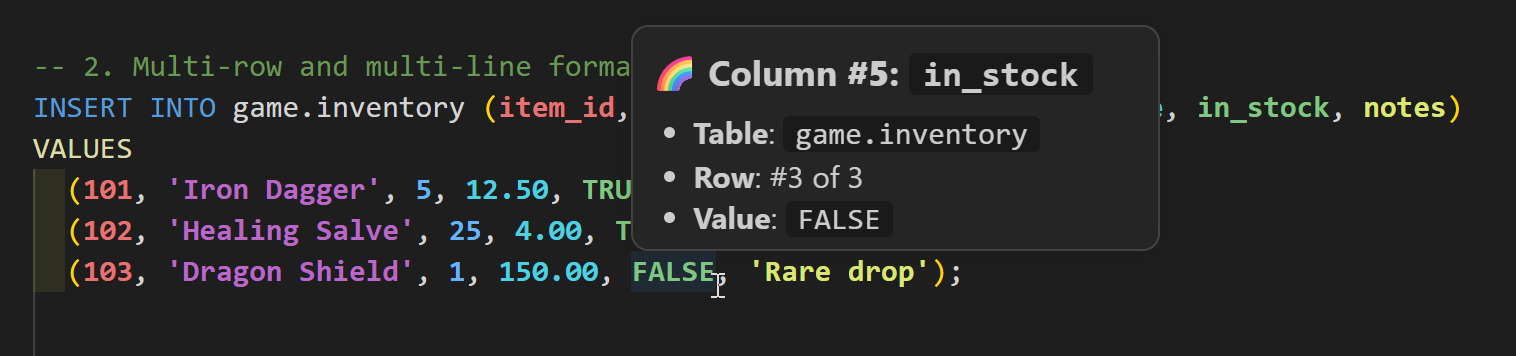
And if you're more of a keyboard person (like me most of the time), the active column also shows up in the status bar while you move your cursor through the statement.
A small bonus: catching mismatches
While building it, I kept running into a second classic mistake: one value too many, or one value missing. You know, the kind of error that only shows up when you run the script... and of course it's on row 47.
Let me be clear: Rainbow SQL is not a SQL validator, and it doesn't try to be one. But when the number of values in a row doesn't match the number of declared columns, it highlights that row in red so you can spot it right away.
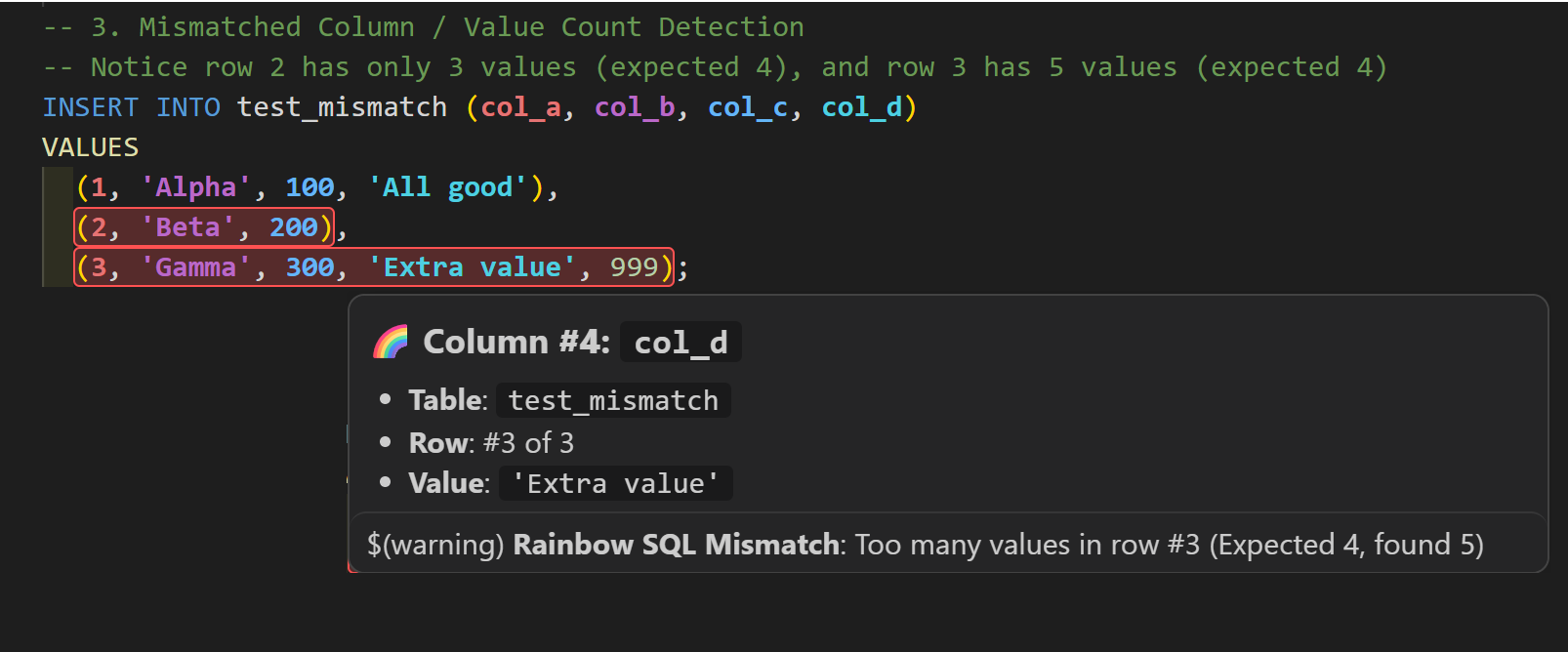
Row 2 is missing a value, row 3 has an extra one. Both jump out immediately.
The rest of the goodies
Here's a quick tour of everything that's in there:
- Matching column and value colors to follow each column through one or more
VALUES rows.
- Single-row and multi-row statements, on one line or across many.
- Column details on hover: column number, name, table, and row position.
- Active column in the status bar while you move through a statement.
- Mismatch detection for rows with too many or too few values.
- Theme-aware colors, with separate palettes for light and dark themes. And yes, you can customize them.
- SQL-aware parsing that handles quoted values, comments, nested expressions, and the usual identifier quoting styles.
It activates for SQL, PostgreSQL, MySQL, PL/SQL, T-SQL, and SQLite files. And if you ever want a break from the rainbow, run Rainbow SQL: Toggle Rainbow SQL Highlighting from the Command Palette.
Give it a try (and tell me what you think!)
Rainbow SQL is free and available now on the Visual Studio Marketplace:
👉 Rainbow SQL on the Visual Studio Marketplace
Or install it directly from VS Code: open the Extensions view (Ctrl+Shift+X), search for Rainbow SQL, and click Install.
If it saves you a few minutes of comma counting, I'd really appreciate it if you left a review on the Marketplace. It's my first extension, so every rating and comment means a lot, and it helps other people find it too.
Found a bug or have an idea? The code is on GitHub at fboucher/vscode-rainbow-sql, and issues are very welcome.
Happy (colorful 🌈) coding!