
5 powerful features that make Visual Studio online an indispensable tool
If you are a .Net developer then you know Visual Studio. Few months ago, Microsoft released a new version of this tool call Visual Studio 2013 Community edition. This version offers all the features and is completely free. Many of us already have downloaded and installed this version. Another version is also available, but doesn't have the popularity of his brothers... yet. Let's talk about Visual Studio Online.Get Started
Did you know that Visual Studio Online is available for free? Go to http://www.visualstudio.com/ and create an free account that will included:1- It's a Source Control
It may be called Visual Studio Online, but it has all the features from Team Foundation Server (TFS).Let's create a new project. From your home page, under the tab Overview (selected by default) click on New. This will pop the form to create a new team project. One interesting thing to note is that both TFS and Git are supported as Version control system.
For the post I will create my project MyBookManager using Git.

2- It's an Agile board
Now that we have a project, it's time to describe it. Visual Studio Online has an entire section just for collaborative work. From the home screen of your VSO click on _Users_ tab. Create your users, roles and manage their permissions.
It's now time to time to describe all the features of the project. Click on _Overview_ tab to get back to Home. Select your project, then click on _Work_ tab. From here you will be able to create all the features you need, and split them in tasks and sub tasks; perfect to fill-up a backlog item list and plan your next sprint.
Once a sprint is started, it's also from here that you will be able to see and interact with the Board.

From this board, cards can be move by dragging them in the column that reflected the current status of the work. Open the on-premise Visual Studio. From the bar Team Explorer click on the little plug, and select: “Select Team Project…”. If your VSO Server is not present, just add it, then select the your project (ex: MyBookManager).
For this post I will create an empty Asp.Net MVC project. In the Models folder I add a new class Book with very basic code.
For this post I will create an empty Asp.Net MVC project. In the Models folder I add a new class Book with very basic code.
public class Book
{
     public int BookID { get; set; }
     public string Title { get; set; }
     public bool Read { get; set; }
}
Then by right-clicking on the folder Controllers select the Add new Scafolded Item option, and use that to create our CRUD controller and views for the Book model we just created. Let’s check-in the code, and go back to VSO. You should see the code.
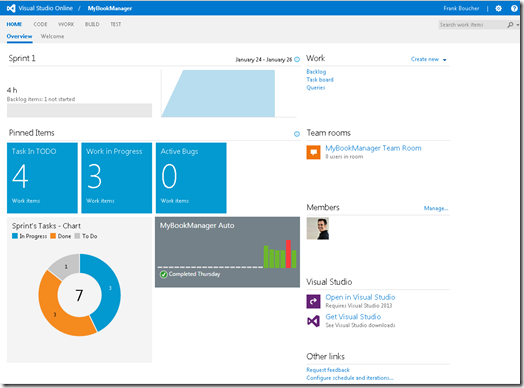
To give more visibility to the work’s status, you can create very nice chart and pinned them on the Home page. To add a new chart, go in the Work tab select Queries. You can use the existing query or simply create a new one. To add a chart to the Home page right-click on the query and select Pin to Home page.
 If it's one think that seem always complex for a developer is the automation build and deployment server setup. With VSO no need for all that complexity and resources, only follow a short wizard and your build machine will be setup in Azure ready to deploy as soon as you want. You can setup an automatic build and deployment from the Azure Portal and Visual Studio. In this post, I will use Visual Studio.
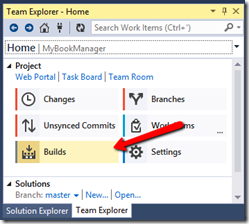
From the Team Explorer bar in Visual Studio, click on Builds then New Build Definition, to get the wizard.
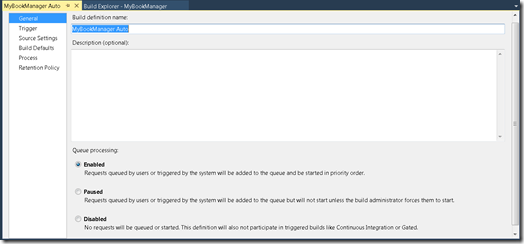
First step, just put a name who makes sense.
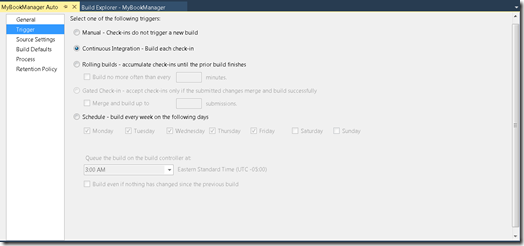
Step two, we need to choose what will trigger the build. I select continuous integration, so the build should start at every check-in.
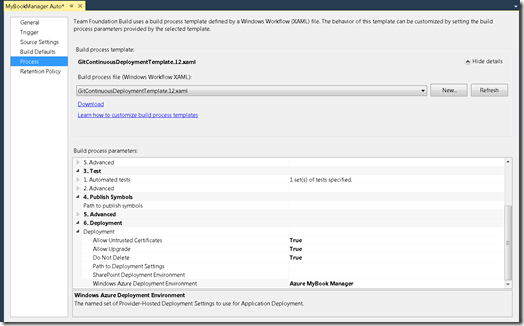
When I create my project I select Git as a source control, so for the next step I will need to expand the Build process template zone, by clicking Show details. Then from the list select GitContinuousDeploymentTemplate.12.xaml.
The build definition is done, save and let it there for now.
If it's one feature that you could expect from a tool like VSO is to be able to edit code online. The online version is obviously less powerful then the on-premise one, but still you will it very convenient and easy to use.
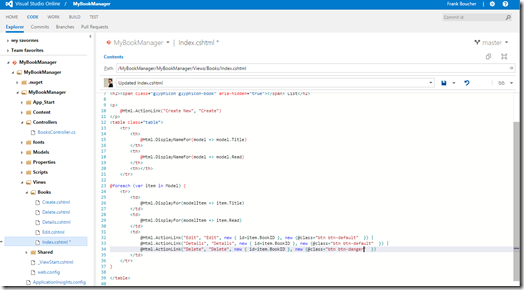
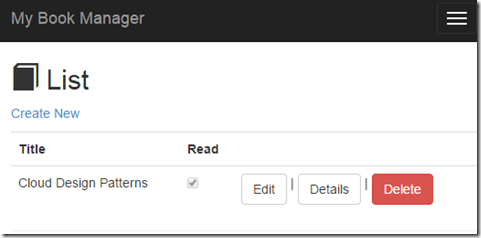
Let's change the button in the book list to be more modern. First, select Code tab. Now let's find the Index.html file under the View folder. Once the file is selected, click on Edit button. It's time to add some bootstrap classes to transform the look of our button. As you can see even we are in a web browser we have IntelliSense.
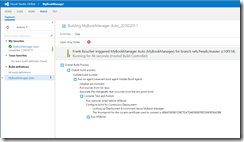 Hit Save and it will commit our change. Since we create a continuous build, this one should kick-in and build and deploy our changes. We can see the status of our build by going in the Build tab in Visual Studio Online. It’s also possible to see it in the Home page by pinning it.
When the build will be done, our change will be visible in the website. Of course, this build is very simple, unit test and more complexes processes could also be implemented.
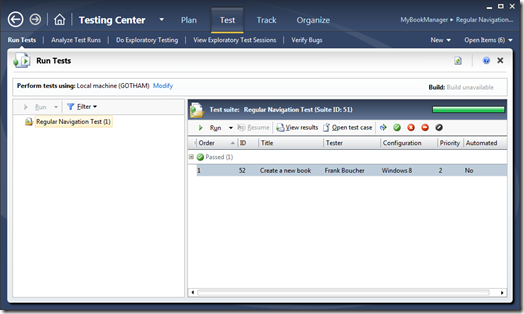
Another great feature is the possibility to create a test plan for the quality assurance (QA) tester. You could create it via VSO as a test plan by going in the last tab Test. And create a checklist, so they can follow it to test the application feature by feature. You could also record the action with Microsoft Test Manager and then do a load test on the website by running simultaneously multiple tests on different instances in Azure.
~Frank B
http://www.visualstudio.com/
To give more visibility to the work’s status, you can create very nice chart and pinned them on the Home page. To add a new chart, go in the Work tab select Queries. You can use the existing query or simply create a new one. To add a chart to the Home page right-click on the query and select Pin to Home page.

3- It's a build / Deployment server
If it's one think that seem always complex for a developer is the automation build and deployment server setup. With VSO no need for all that complexity and resources, only follow a short wizard and your build machine will be setup in Azure ready to deploy as soon as you want. You can setup an automatic build and deployment from the Azure Portal and Visual Studio. In this post, I will use Visual Studio.From the Team Explorer bar in Visual Studio, click on Builds then New Build Definition, to get the wizard.

First step, just put a name who makes sense.

Step two, we need to choose what will trigger the build. I select continuous integration, so the build should start at every check-in.

When I create my project I select Git as a source control, so for the next step I will need to expand the Build process template zone, by clicking Show details. Then from the list select GitContinuousDeploymentTemplate.12.xaml.
The build definition is done, save and let it there for now.
4- It's a Code Editor
If it's one feature that you could expect from a tool like VSO is to be able to edit code online. The online version is obviously less powerful then the on-premise one, but still you will it very convenient and easy to use.
Let's change the button in the book list to be more modern. First, select Code tab. Now let's find the Index.html file under the View folder. Once the file is selected, click on Edit button. It's time to add some bootstrap classes to transform the look of our button. As you can see even we are in a web browser we have IntelliSense.
 Hit Save and it will commit our change. Since we create a continuous build, this one should kick-in and build and deploy our changes. We can see the status of our build by going in the Build tab in Visual Studio Online. It’s also possible to see it in the Home page by pinning it.
When the build will be done, our change will be visible in the website. Of course, this build is very simple, unit test and more complexes processes could also be implemented.

5- It's a Test server
Another great feature is the possibility to create a test plan for the quality assurance (QA) tester. You could create it via VSO as a test plan by going in the last tab Test. And create a checklist, so they can follow it to test the application feature by feature. You could also record the action with Microsoft Test Manager and then do a load test on the website by running simultaneously multiple tests on different instances in Azure.

Verdict
Visual Studio Online is a great tool and win to be now more. What are the features you enjoy the most in VSO?~Frank B


